This guide is for parents and guardians. Shkolla.app lets you follow your child's school life: grades, attendance, homework, exams, behaviour notes, the timetable, payments and school news — and message their teachers.
If you have more than one child at the school, you see all of them with one account.
Signing in
Shkolla.app runs in your web browser — there is nothing to install. It works on computers, tablets and phones.
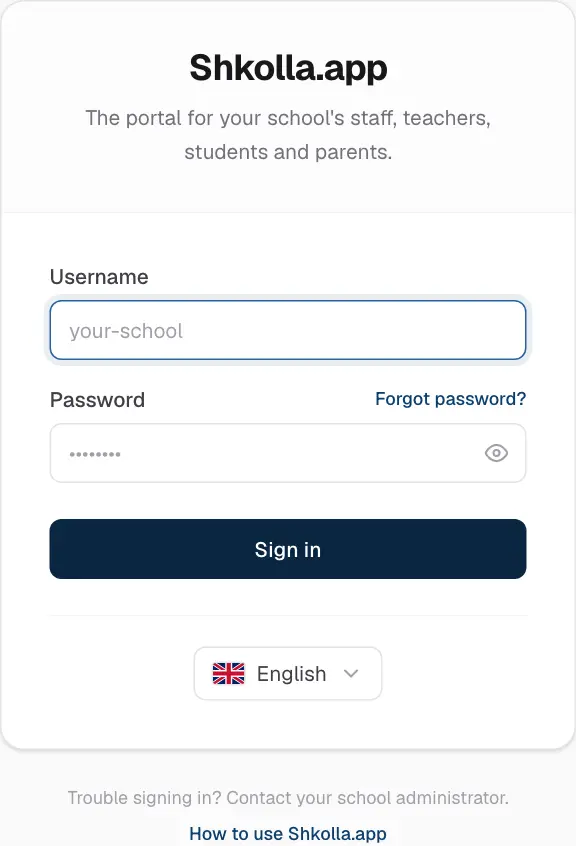
Open portal.shkolla.app in your browser.
Choose your language at the bottom of the sign-in card. The app remembers it next time.
Enter your Username and Password.
Click Sign in.
The sign-in page.
Forgot your password?
Contact your school office. They can set a new password for you in a moment. For your security, personal accounts can't be reset by email.
Finding your way around
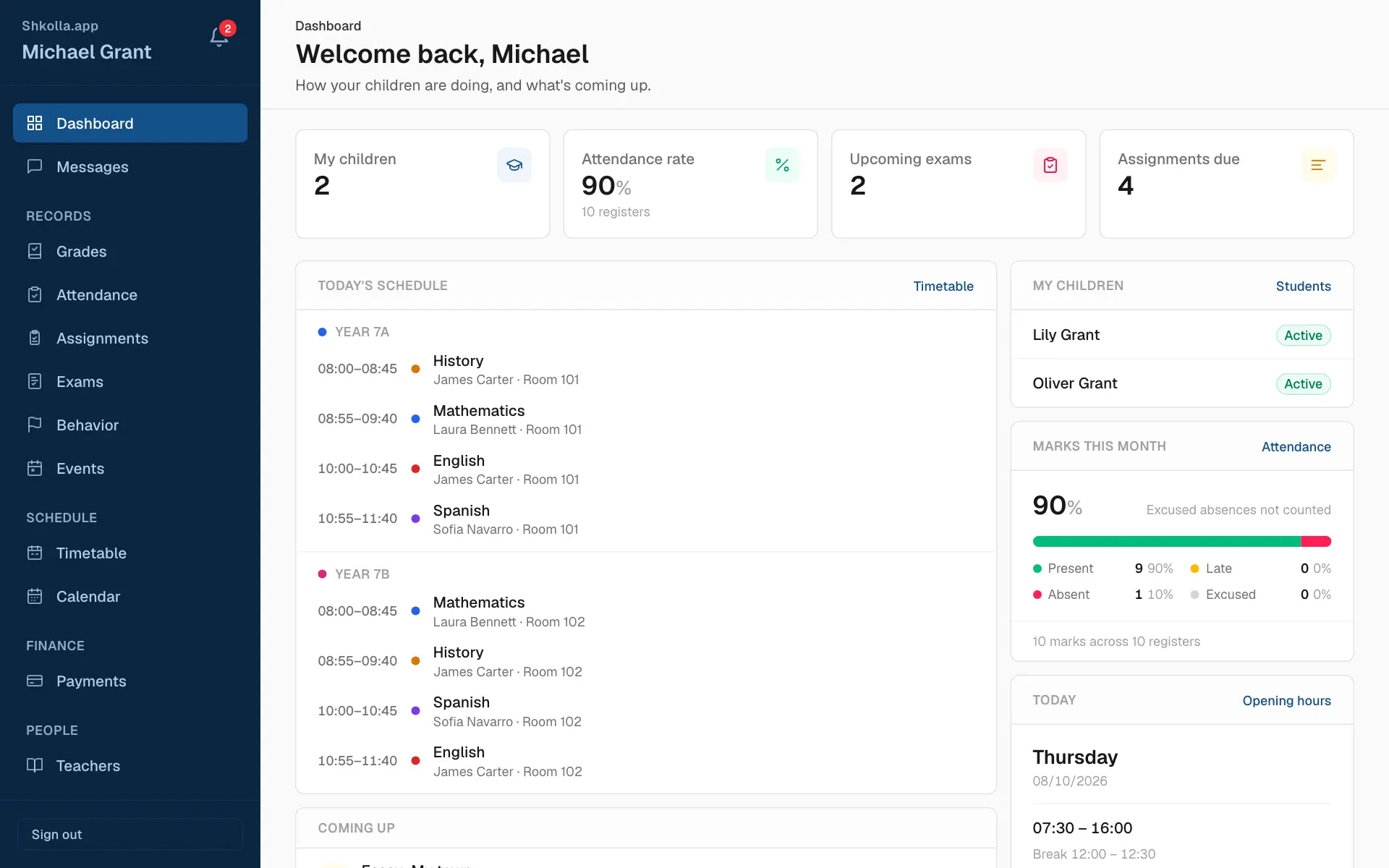
After signing in you land on your Dashboard — a summary made just for you. Everything else is in the sidebar on the left.
Your dashboard and sidebar.
The sidebar lists the pages meant for you, in groups. The page you're on is highlighted.
The bell at the top shows your notifications. A red number counts the unread ones.
Messages opens your conversations. The number beside it counts unread messages.
Sign out is at the bottom. Always sign out on a shared device.
You only ever see what you're allowed to see — your own records, your children's or your classes'. Pages you can only read have no add or edit buttons.
On your phone
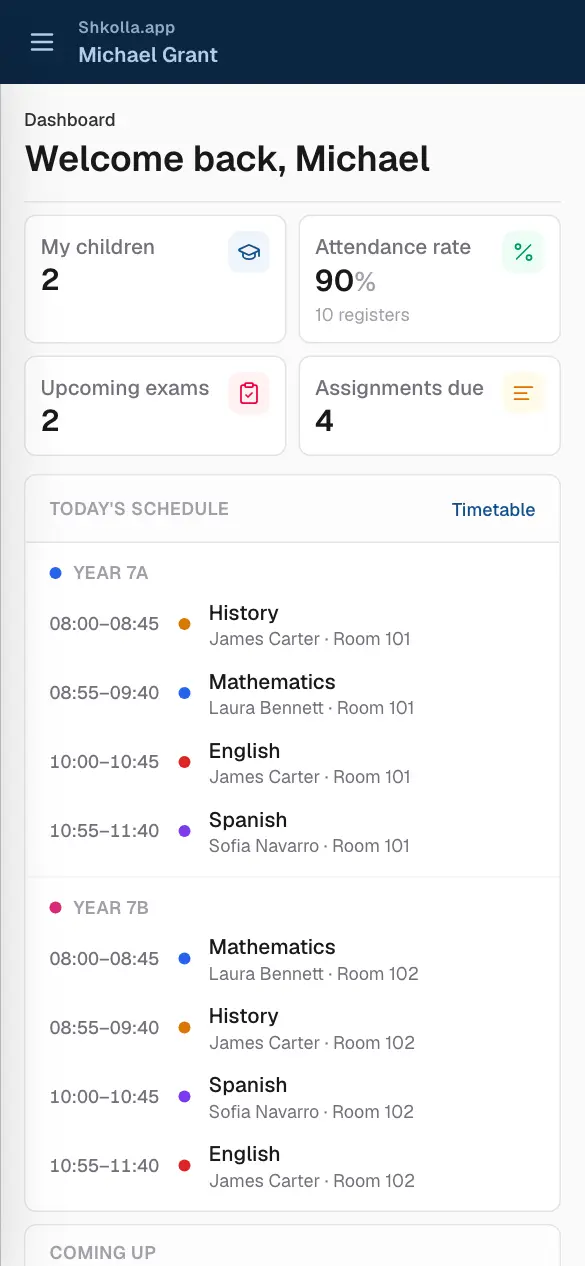
On a phone the sidebar folds away. Tap the menu button (☰) at the top left to open it, then tap a page.
Shkolla.app on a phone.
02
Your children
Your dashboard
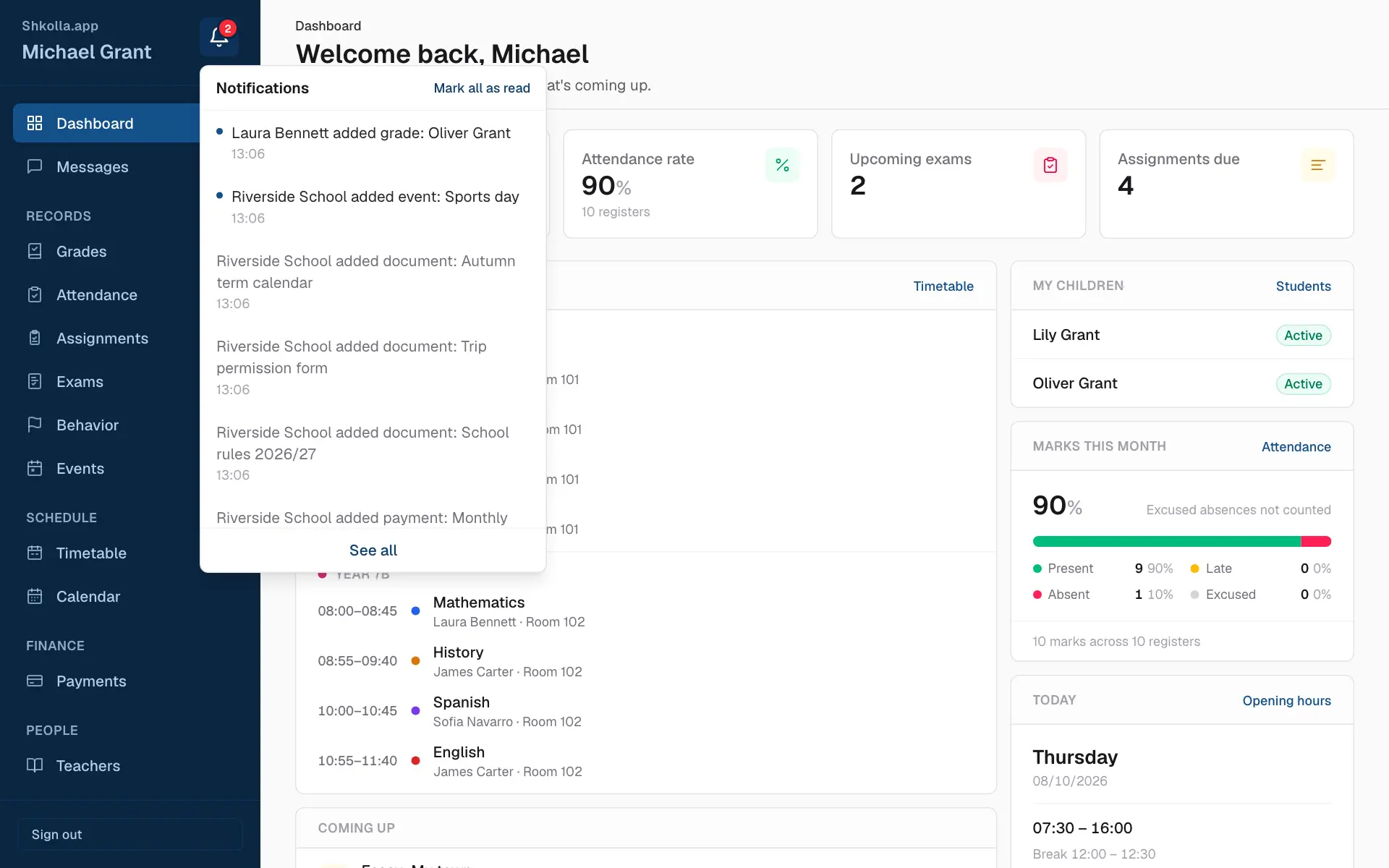
Your dashboard shows how your children are doing and what's coming up.
A parent's dashboard.
The numbers at the top — your children, their attendance rate, upcoming exams and assignments due.
Today's schedule — each child's lessons today, with teacher and room.
My children — each child's name; click through for their details.
Marks this month — attendance at a glance: present, late, absent and excused.
Coming up — exams, homework due dates and school events.
Grades
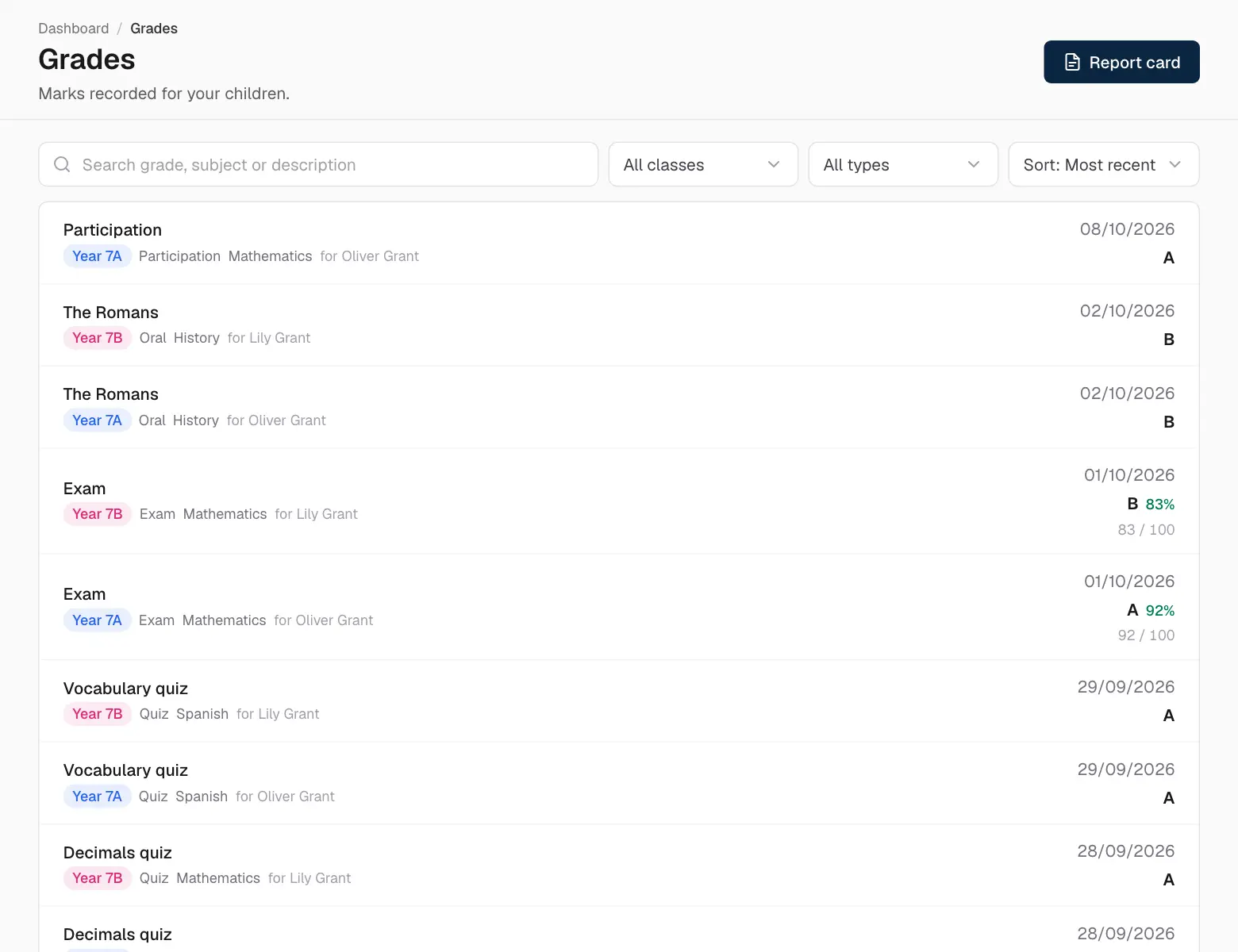
Grades lists every published mark: the type of work, subject, date and grade — with the score and percentage when there is one. Use search and the filters to focus on one class or type.
Grades.
Report card
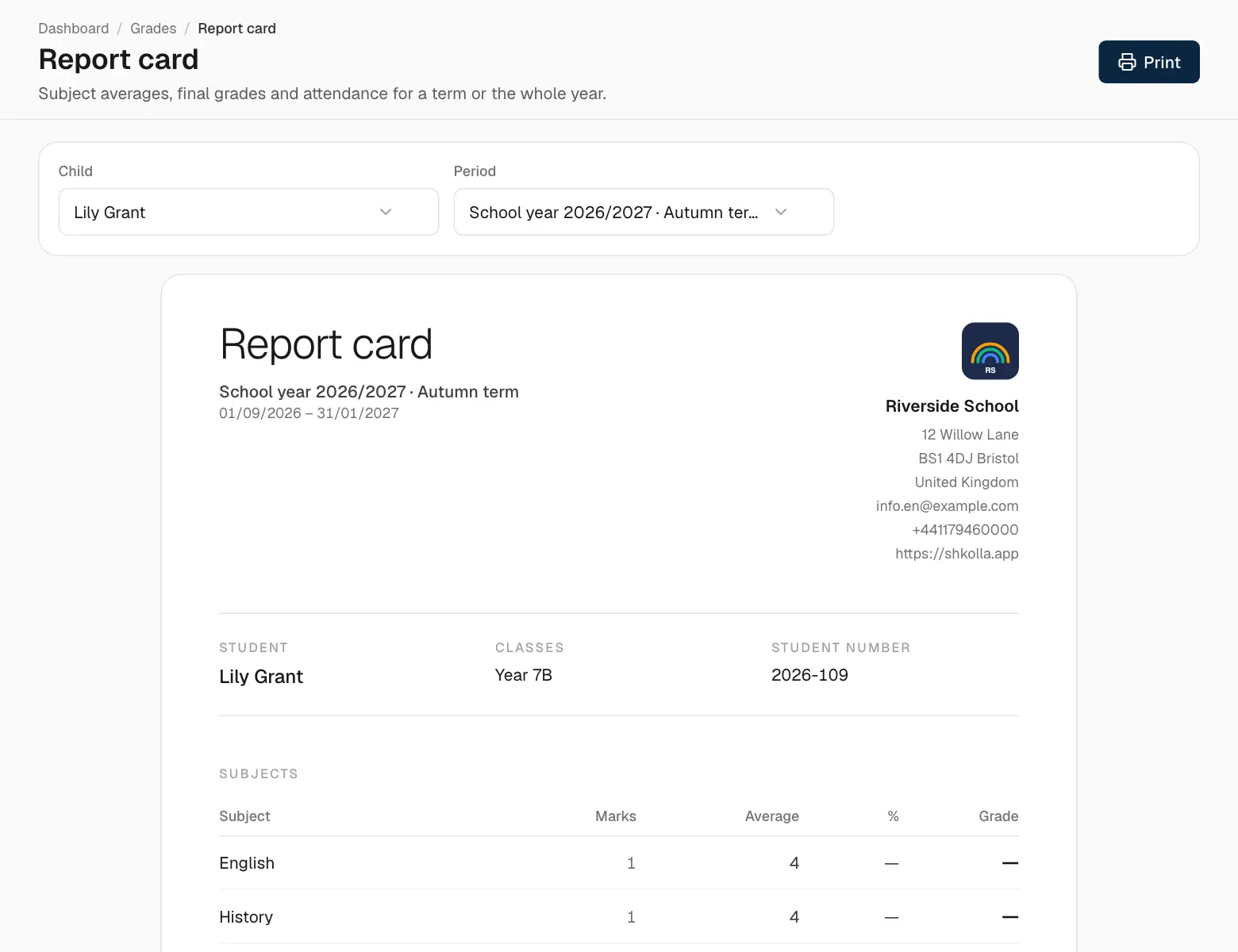
Click Report card on the Grades page to see the averages per subject, the final grades and attendance for a term or the whole year. Click Print to print it or save it as a PDF.
A report card.
Attendance
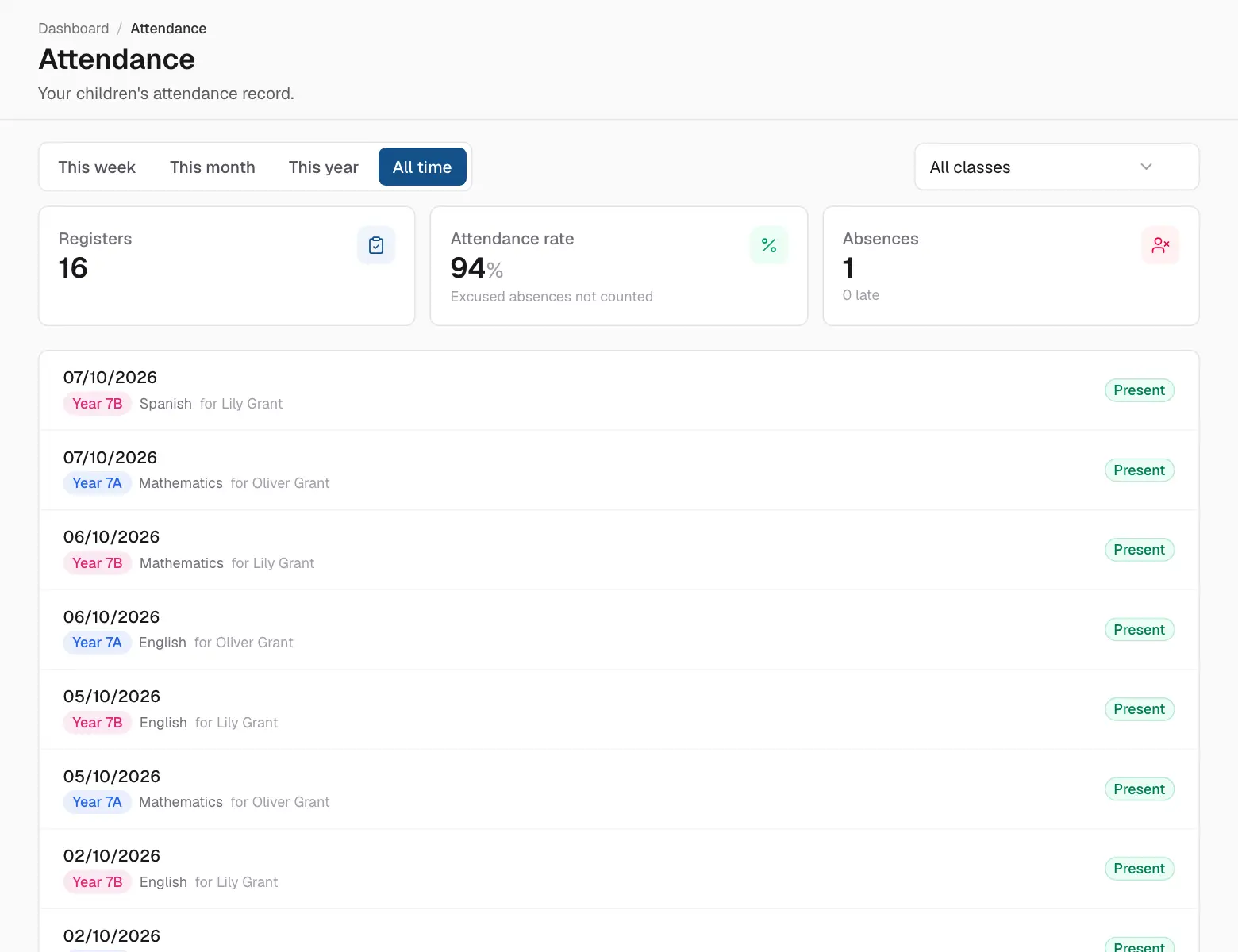
Attendance shows every register: present, late (with how many minutes), absent or excused, with totals at the top.
Attendance.
Homework and assignments
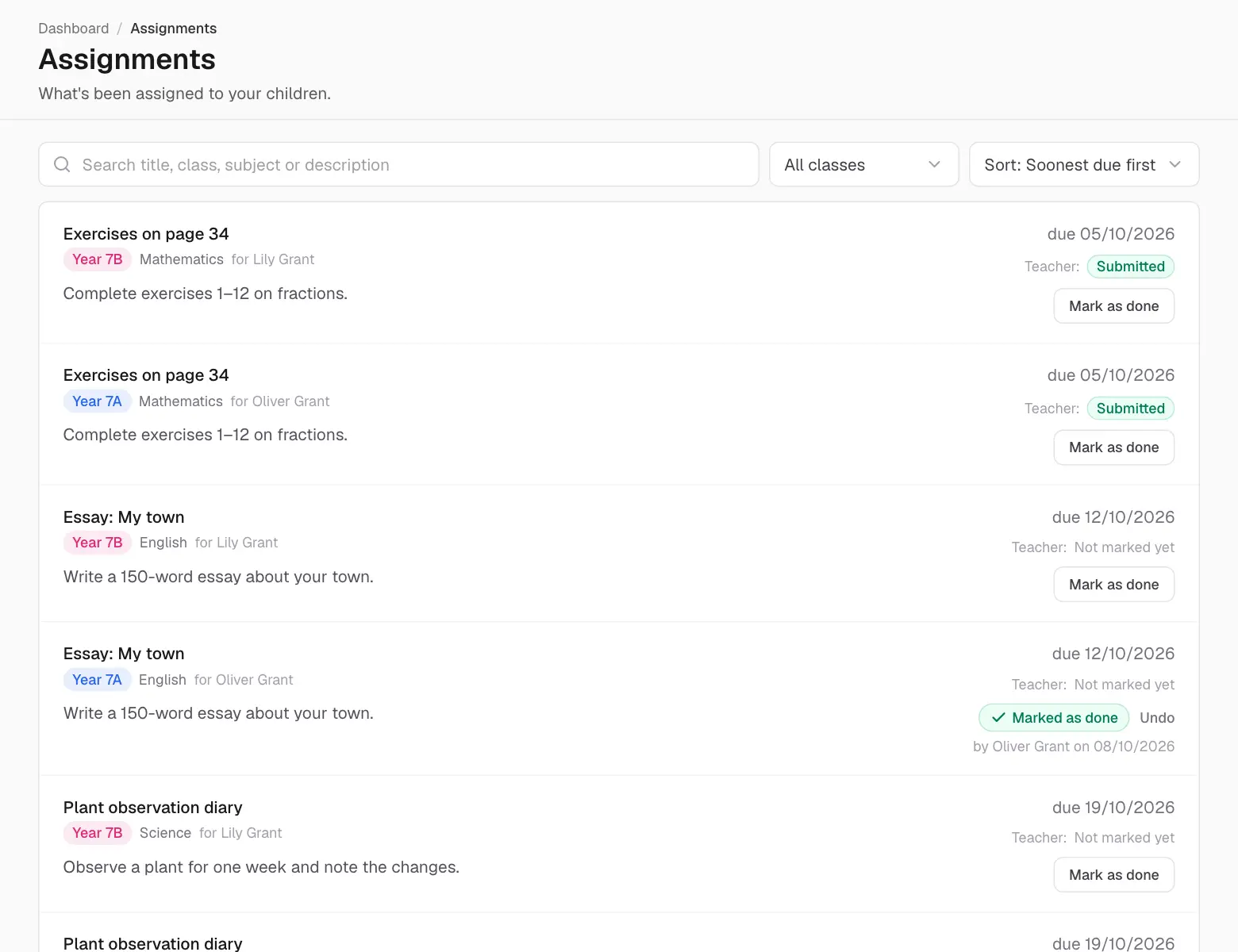
Assignments lists homework and projects with their due dates, soonest first.
Assignments.
Mark as done tells the teacher the work is finished. Undo takes it back if you clicked by mistake.
Once the teacher has checked the work, their verdict appears: Submitted, Late, Missing or Excused.
Exams
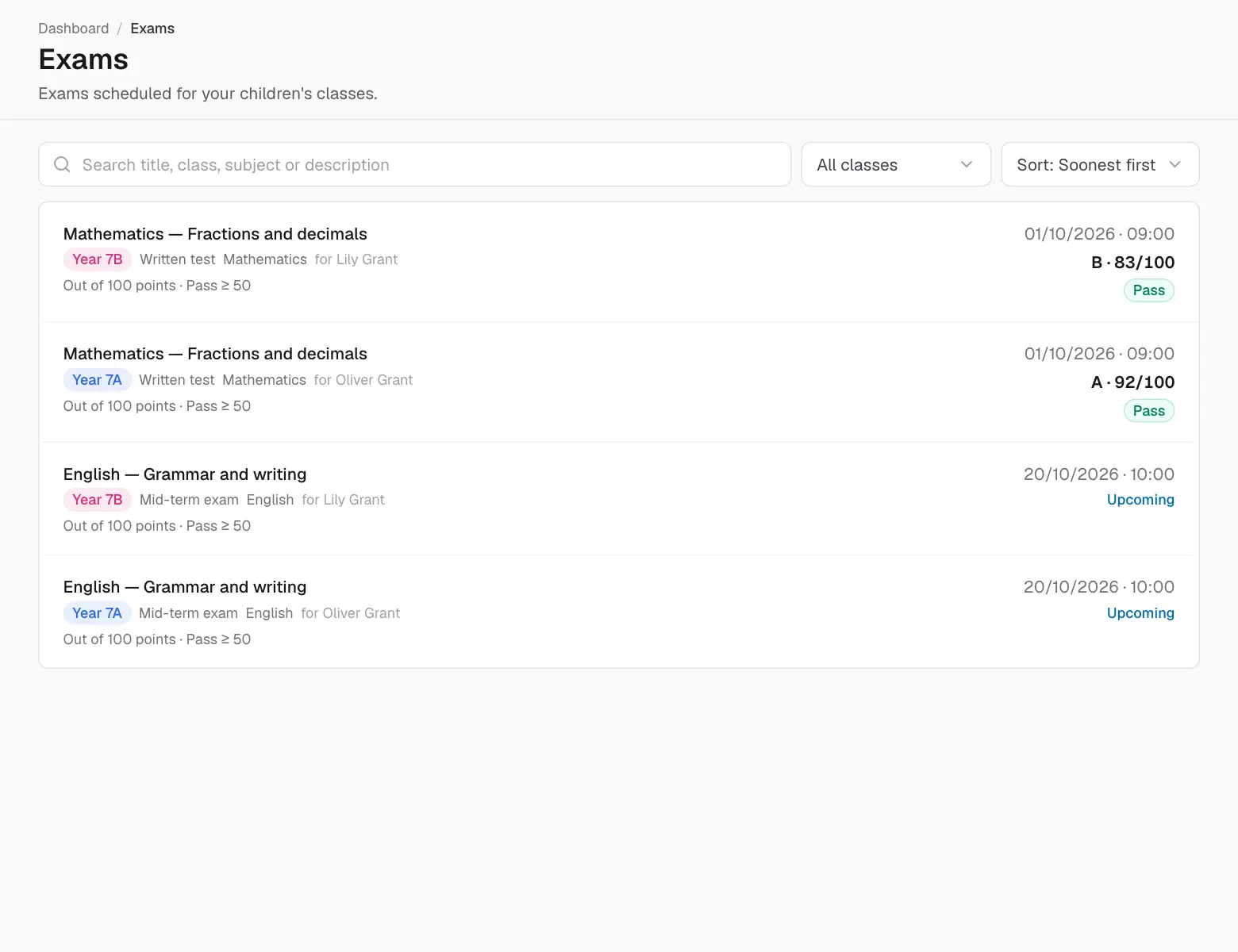
Exams shows upcoming exams with date, time and subject, and past exams with their results. Results appear once the teacher releases them, coloured green for a pass and red for a fail.
Exams.
Behaviour notes
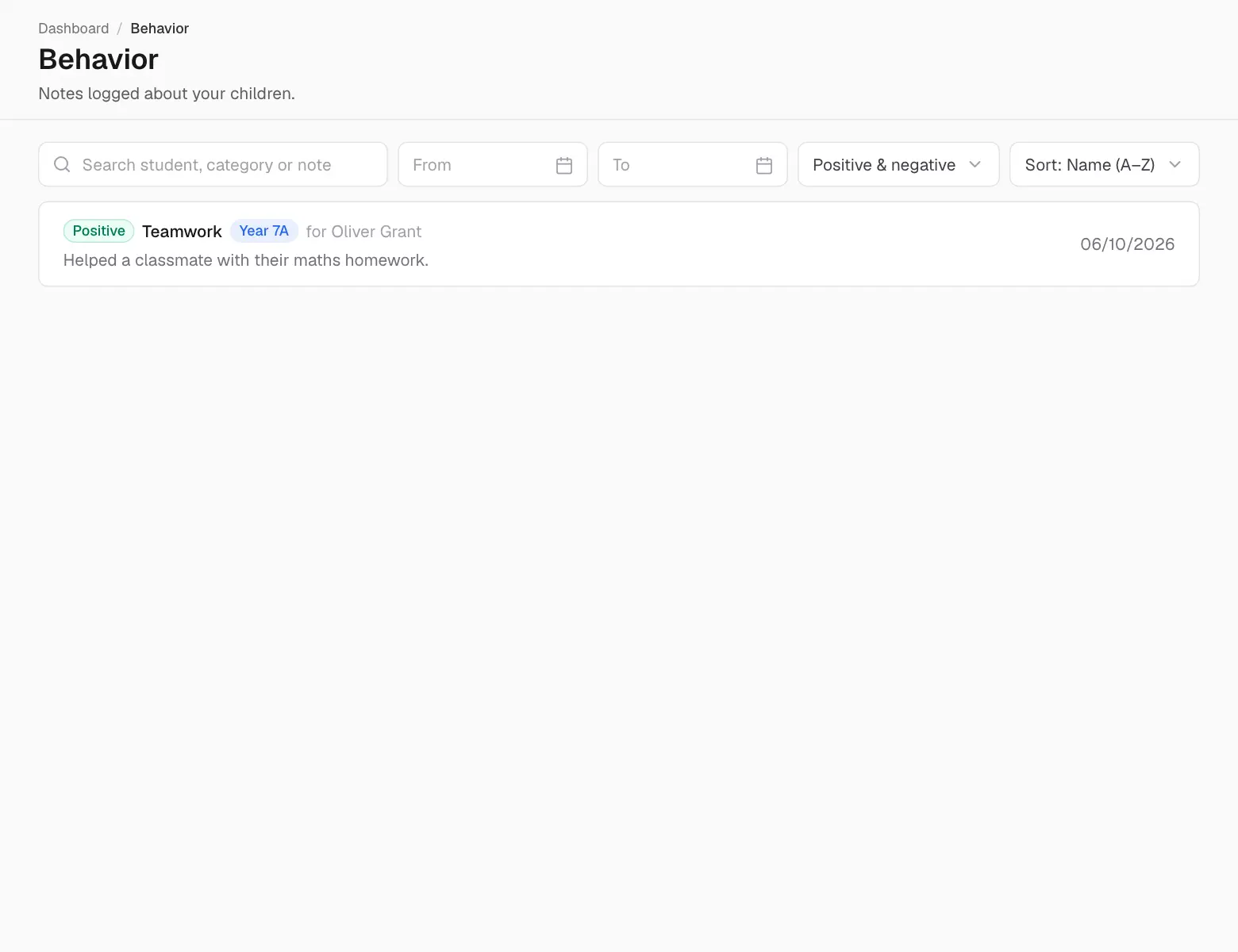
Behavior shows the positive and negative notes teachers have written, with the date and who wrote them.
Behaviour notes.
03
Schedule
Your timetable
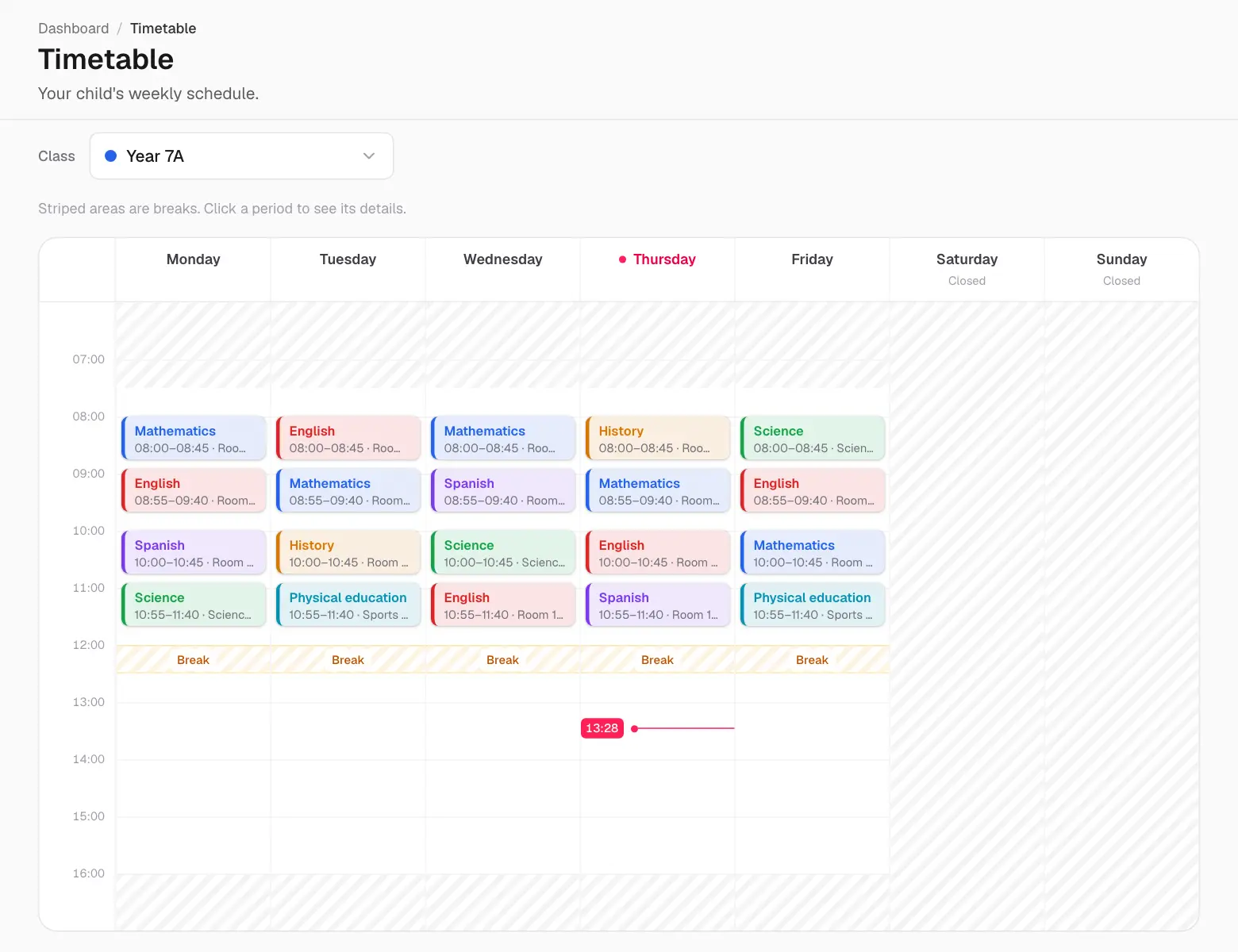
Timetable shows your week: a teacher's own lessons, or a student's class lessons, with subject, teacher, room and time. Today is highlighted and a line marks the current time.
The week at a glance.
Calendar
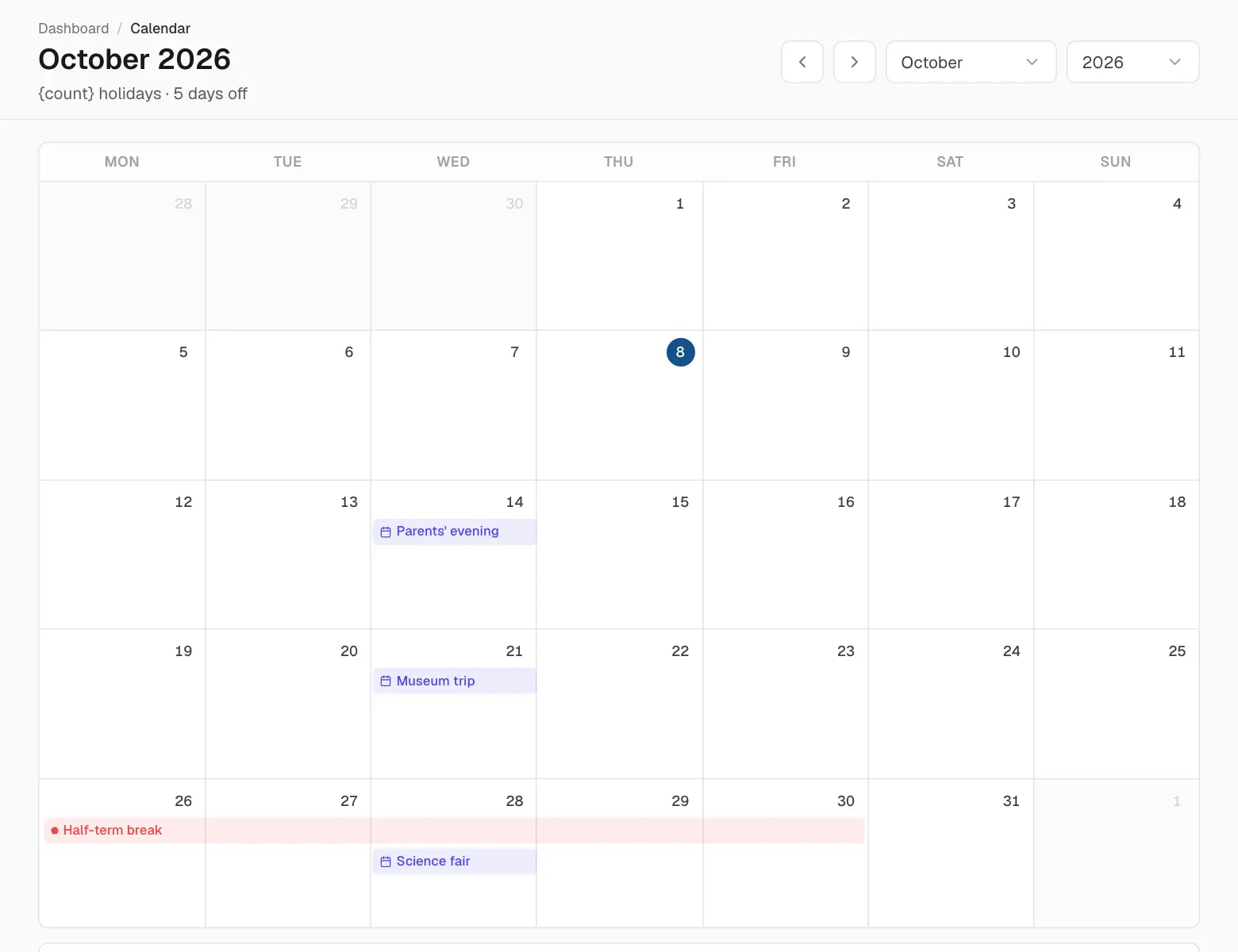
Calendar shows the whole month at a glance: holidays, school events and, for those who manage leave, who is away. Use the arrows to change month and click an entry for its details.
The month calendar.
Events
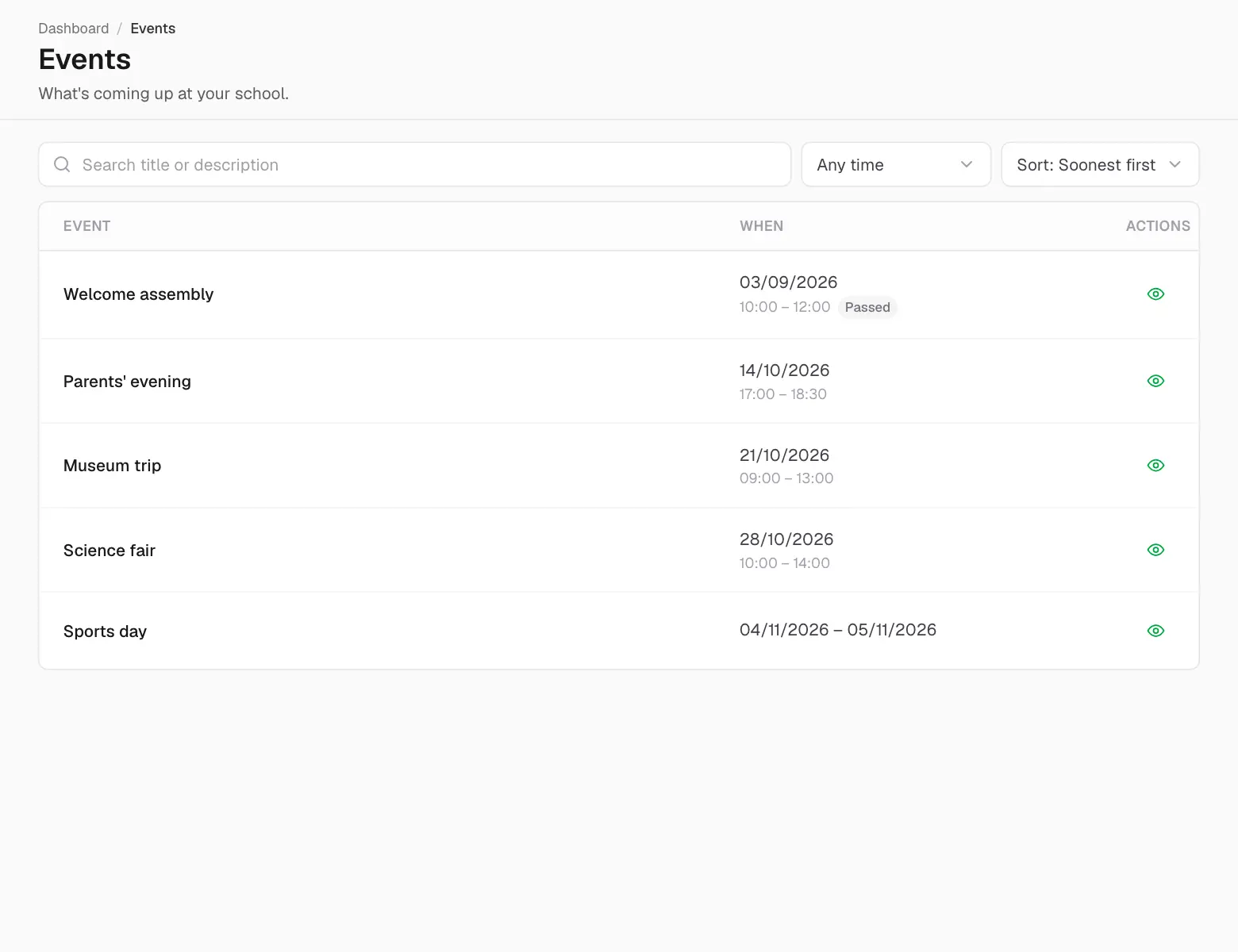
Events lists what's happening at school — parents' evenings, trips, sports days — with dates and times. New events also arrive as a notification.
Upcoming events.
Holidays and opening hours
Holidays lists the days the school is closed, and Opening hours when it's open each day. Holidays also appear on the calendar.
04
School
Payments
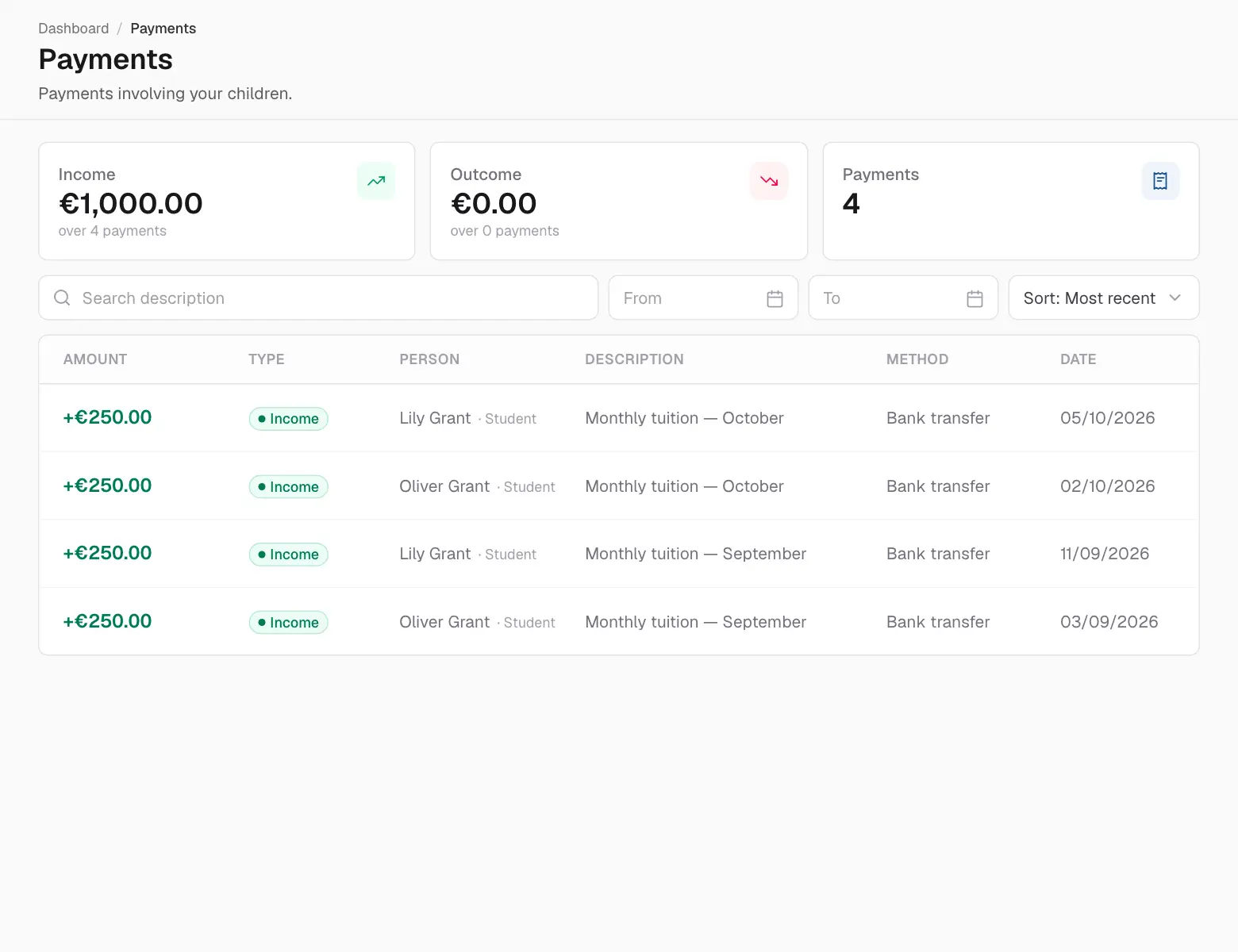
Payments lists the payments the school has recorded in your name (or your children's) — fees paid, dates and methods.
Payments.
Teachers and contacts
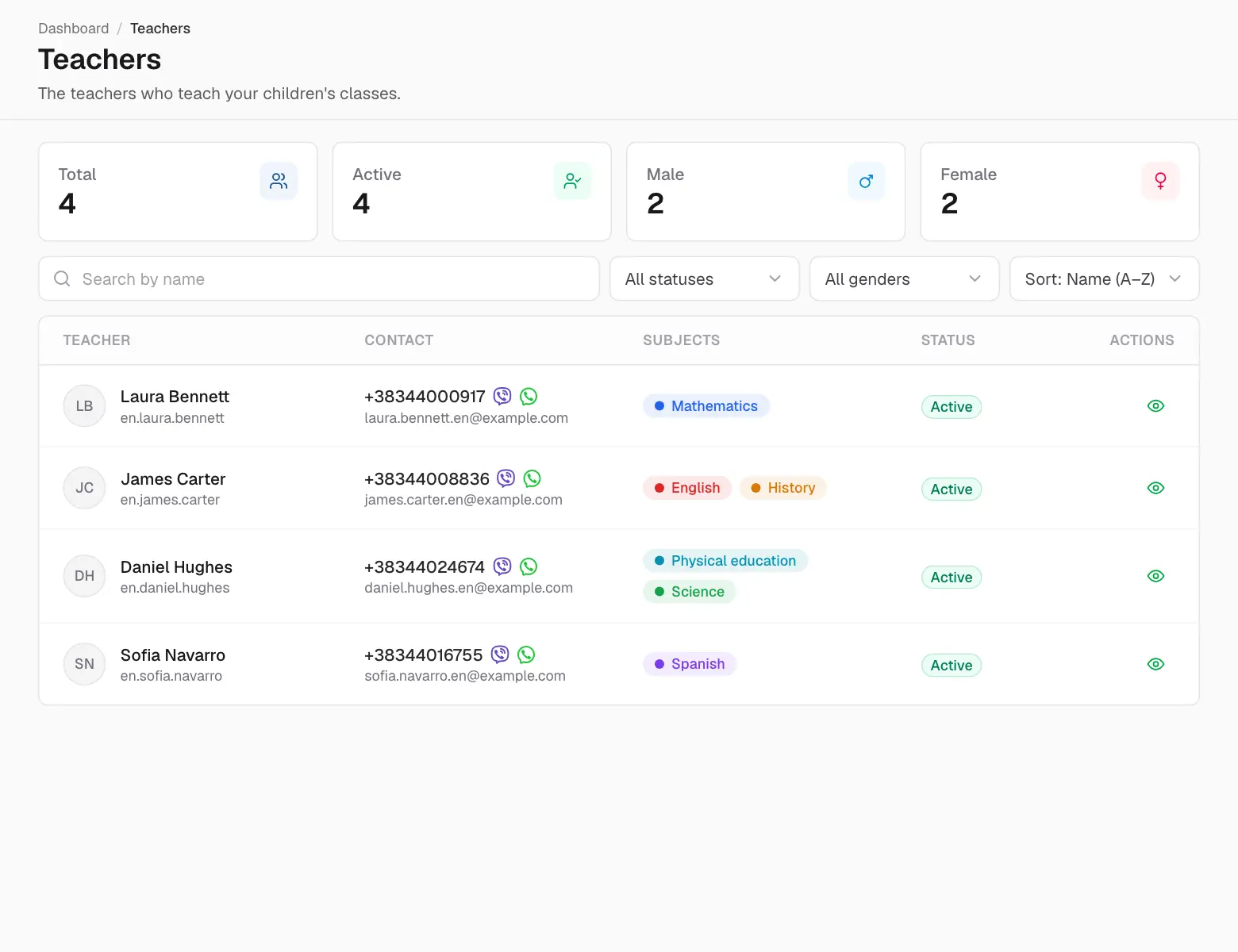
Under People you'll find your teachers — for parents, your children's teachers — and the school's staff, with contact details. Click the eye icon to see more.
Teachers.
Documents
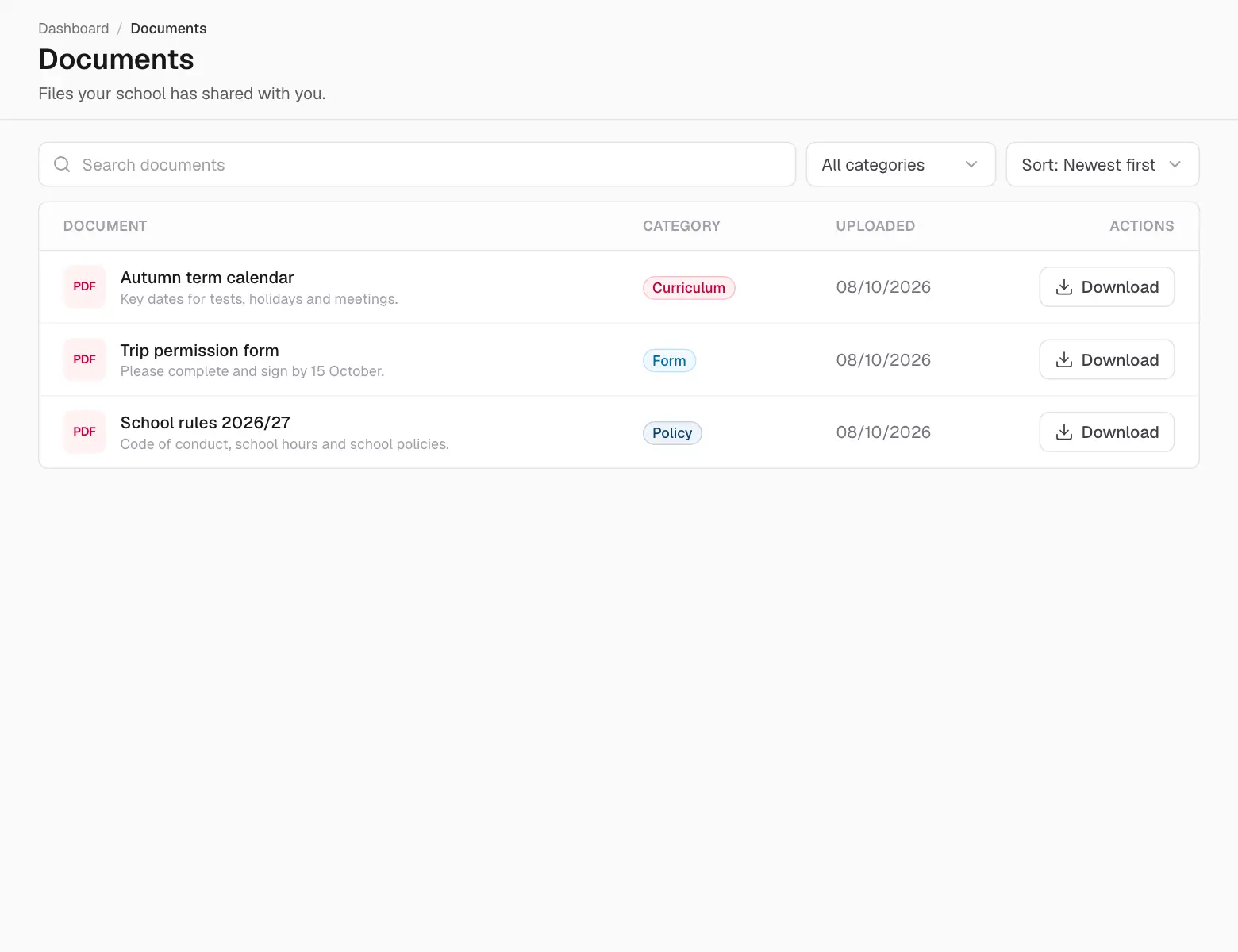
Documents holds the files your school and teachers have shared with you — rules, forms, newsletters. Click a document to open or download it.
Documents shared with you.
05
Messages and notifications
Messages
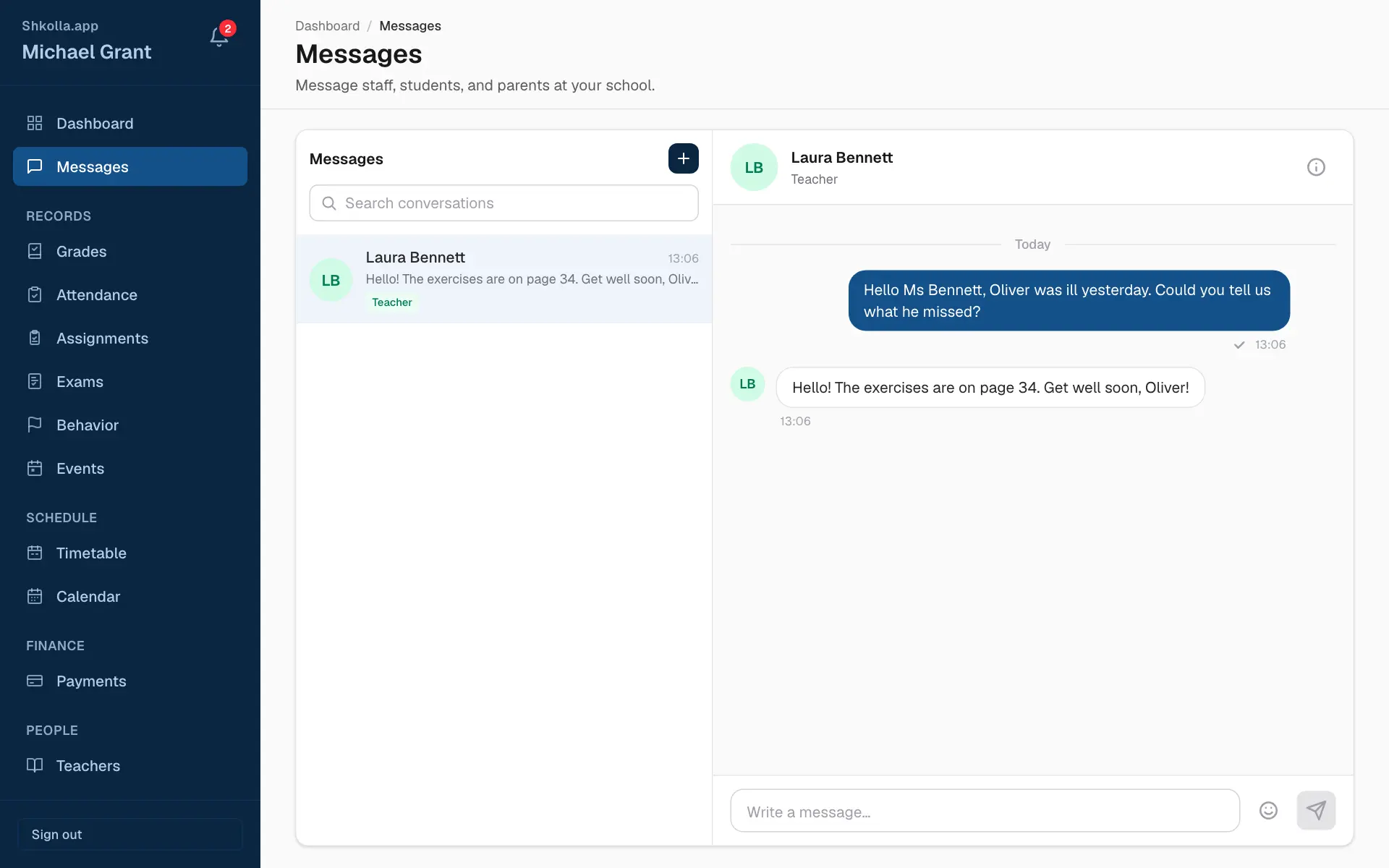
Messages is a private chat for your school community.
Messages.
Click Messages in the sidebar.
Click + (New message) and choose who to write to.
Type your message and press Enter.
Your conversations are on the left; a blue number counts unread messages.
You can only message people you're connected to at school — for example your teachers, your classmates, your children's teachers and the school office.
The school, teachers and staff can also start a group with New group chat — handy for a class's teachers or a committee.
Notifications
The bell at the top of the sidebar tells you when something new happens — a grade, an assignment, an event, a leave request…
Your latest notifications.
Click the bell to see the latest, and click one to open it.
Mark all as read clears the red badge.
See all opens the full history.
06
Your account
Your profile
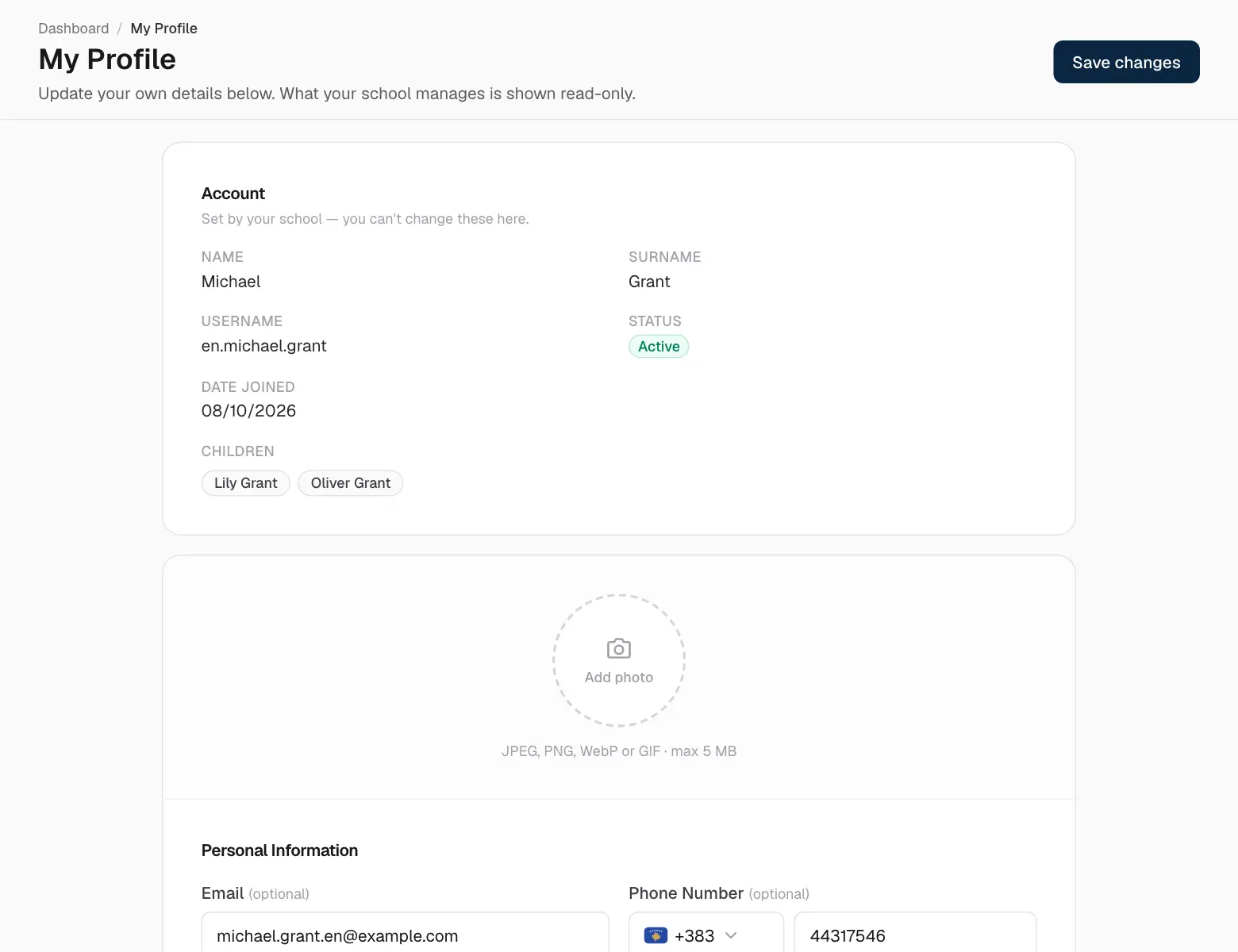
Profile is your own record. Add a photo and keep your email, phone, birthday, nationality, address and short bio up to date. Your name, username and school details are managed by the school — ask the office if something's wrong.
Your profile.
Your settings
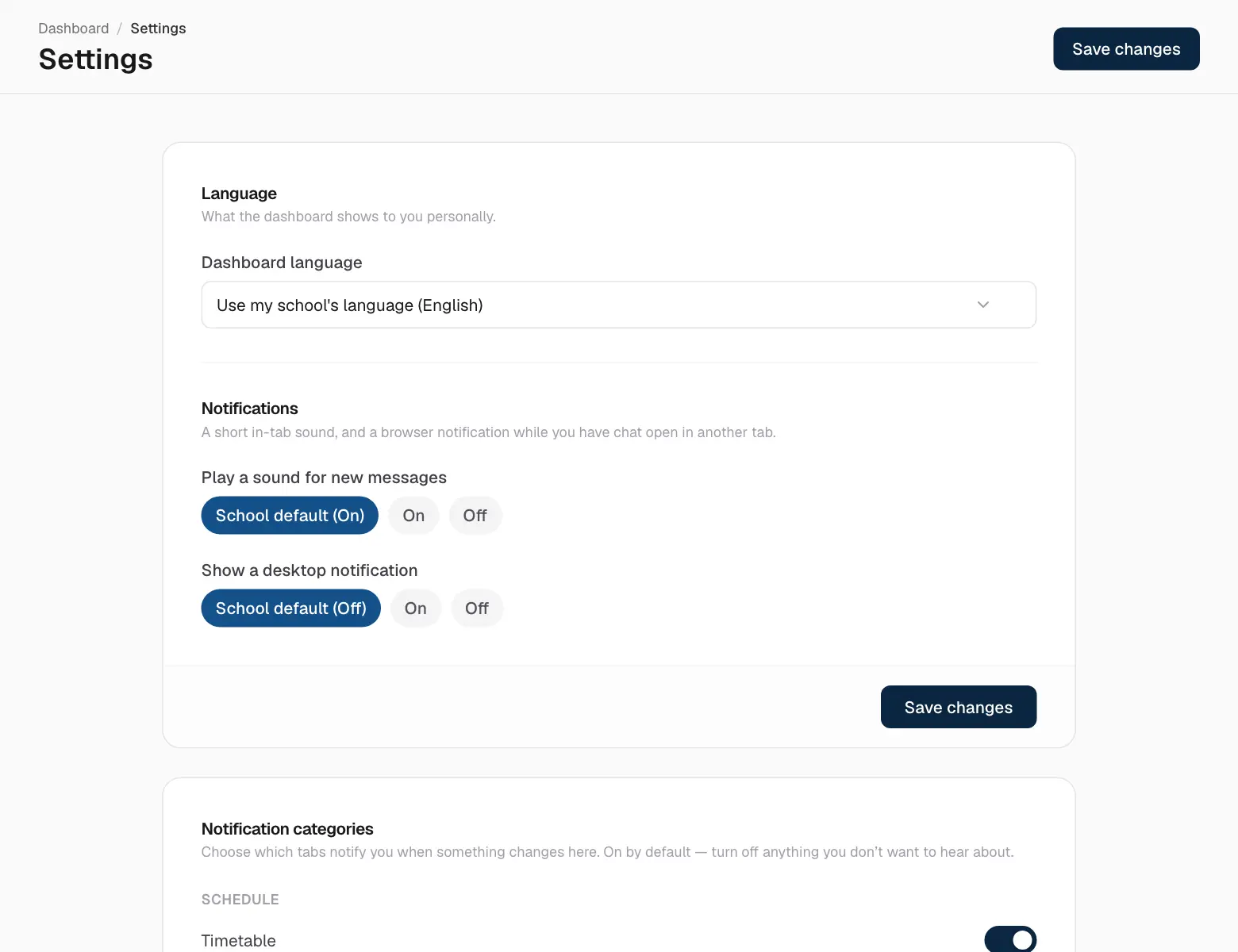
Your settings.
Language — the app's language, just for you.
Notifications — switch notifications on or off for each tab.
Account — change your password, or sign out of every other device if you forgot to sign out somewhere.
07
Questions and answers
Questions and answers
I don't see my child. Ask the school office to link your child to your account.
A grade is missing. Teachers publish grades when they're ready; drafts aren't shown.
An absence should be excused. Message the teacher or the school office.
I forgot my password. Ask the school office to set a new one.
 Shkolla.app